Access Code Recovery
Introduction
The Access Code Recovery system provides administrators with tools to manage and assist users with Access Codes, ensuring secure access to encrypted messages. Administrators have control over the Access Code Recovery Mode, which determines how users interact with their Access Codes.
The system supports three modes:
- Disabled: Users manage their own Access Code with no server storage.
- Hybrid: Users set their Access Code, and it is stored securely on the server for recovery.
- Auto: Access Codes are fully managed by the system, requiring no user input.
Admin Responsibilities
An administrator is responsible for:
- Configuring the Access Code Recovery Mode at the organization level.
- Assisting users in retrieving their Access Code in Hybrid Mode and Auto Mode.
- Ensuring secure handling of Access Codes when providing them to users.
- Monitoring and auditing Access Code retrieval requests for security compliance.
Access Code Recovery Modes & Admin Actions
Disabled Mode
- No administrative involvement is required.
- Users are responsible for managing and storing their Access Code.
- No Access Code recovery options are available. That means, users will not be able to access their encrypted message history if they forget their access code
Hybrid Mode (Admin-Assisted Recovery)
- Users create their Access Code, which is securely stored on the server.
- Admins can retrieve the stored Access Code if the user requests recovery.
- It is up to organization's admin to verify the user and deliver the access code in preferred method. SalaX Secure Messaging does not provide a way of identification or code delivery.
- The Access Code is securely copied by the admin for user assistance.
Auto Mode (Fully Managed)
- The system automatically generates and manages Access Codes.
- Users do not manually enter an Access Code.
- Admins can retrieve an Access Code if needed.
- The recovery process requires no user input.
Access Code Management Interface
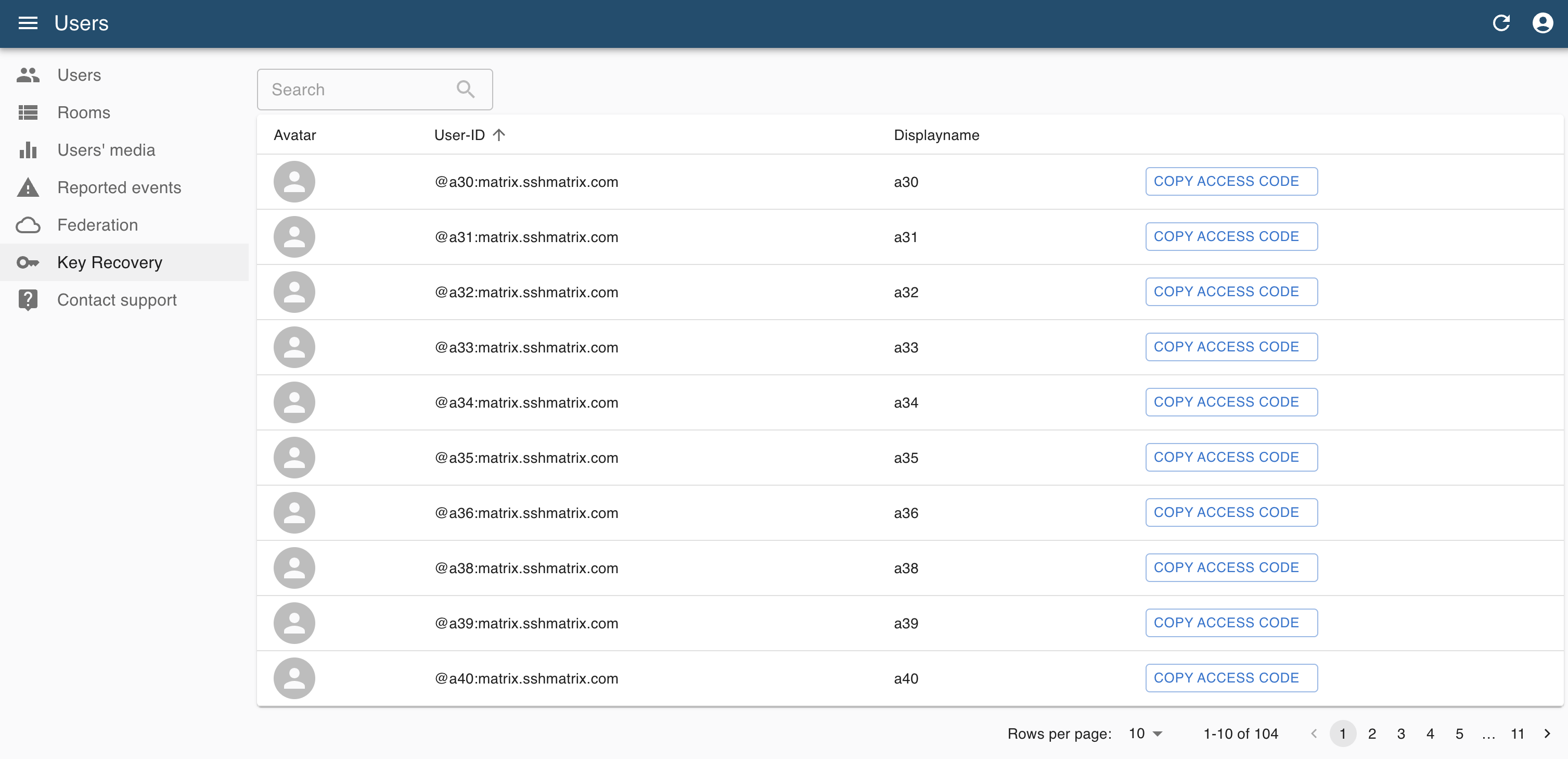
Administrators can manage Access Codes via the Key Recovery section in the Admin Panel.
📌 Navigation:
- Log in to the Admin Panel.
- Click on Key Recovery in the left-side menu.
- Locate the user account that needs assistance.
- Click "COPY ACCESS CODE" to securely retrieve the user's Access Code.
- Provide the Access Code securely to the verified user.
🔒 Security Reminder:
- Never share Access Codes over insecure channels.
- Verify user identity before providing any Access Code.
Migration of Access Code Recovery Method
During the organization's operation, the Access Code Recovery Method may be changed for security or management reasons. This could involve switching between Disabled, Hybrid, and Auto modes.
When a migration occurs, the Admin Panel ensures that existing users can transition smoothly. Below is a guide on expected behavior:
| Migration Type | User Logged Out during the migration | User Logged In during the migration |
|---|---|---|
| Disabled → Hybrid | The user must enter existing Access Code for decryption of existing data and then update it to be stored on the server. | The user is prompted to update the Access Code immediately. |
| Disabled → Auto | The user must enter existing Access Code for decryption of existing data. After logging in, the system automatically manages the Access Code (no user action needed). | Only needs to reload the app for the migration to take effect. |
| Hybrid → Disabled | The user must enter existing Access Code to log in. Afterward, prompted to update the Access Code as it will no longer be stored on the server. | Prompted to update the Access Code to remove server storage. |
| Hybrid → Auto | The user must enter existing Access Code for decryption of existing data. After logging in, the Auto Mode takes over with no further user action required. | Must reload the app (for desktop) or refresh the page (for web) for migration to take effect. |
| Auto → Hybrid | Since the Access Code is server-generated, users must contact the admin for retrieval. After access is granted, they will be prompted to set a new Access Code of their choice. | Prompted to update their Access Code to a user-defined one. |
| Auto → Disabled | Users must contact the admin to retrieve their existing Access Code and then set a new one of their choice. | Prompted to update their Access Code, removing it from the server. |
Security Best Practices for Admins
To ensure security while managing Access Codes, follow these best practices:
- Verify user identity before providing an Access Code.
- Use a secure method to share the retrieved Access Code.
- Do not store or log Access Codes in plaintext.
- Monitor all Access Code requests for suspicious activity.
Summary
The Admin Panel allows administrators to assist users securely in retrieving and managing their Access Codes based on the configured recovery mode:
| Mode | Admin Involvement |
|---|---|
| Disabled | No admin access to Access Codes; users manage their own codes. |
| Hybrid | Admins can retrieve and securely provide Access Codes upon user request. |
| Auto | Admins can retrieve Access Codes, but users do not manually manage them. |
By following best practices, administrators ensure the Access Code Recovery System remains secure, efficient, and user-friendly.