Video and voice calls
Introduction
There are two ways to start or join calls in SalaX Secure Messaging, depending on how you prefer to work.
A. If you have a room where you chat frequently, you can join a meeting directly from that room by clicking the camera icon in the top right corner.
B. If you do not have a dedicated chat room but need meetings, you can create a separate video room specifically for meetings.
Calls in a chat room
Chat rooms are ideal for teams that already collaborate through messages and want to add meetings to the same context.
Using meetings inside a chat room allows you to:
- Keep discussions, shared files, and meeting context in one place
- Continue conversations before and after meetings
- Reuse the same room for recurring meetings with the same participants
Join a meeting in a chat room
To start or join a meeting from a chat room:
-
Open the chat room.
-
Click the Camera icon in the top right corner of the room header.

Video rooms
Video rooms are designed specifically for meetings and calls, without requiring an existing chat-based workflow.
Video rooms are useful when:
- You need ad-hoc or recurring meetings
- You want a dedicated space for calls
- You want to separate meetings from chat discussions
Create a video room
To create a video room:
- Navigate to the sidebar and locate the Video Rooms section.
- Click the + icon next to Video Rooms.
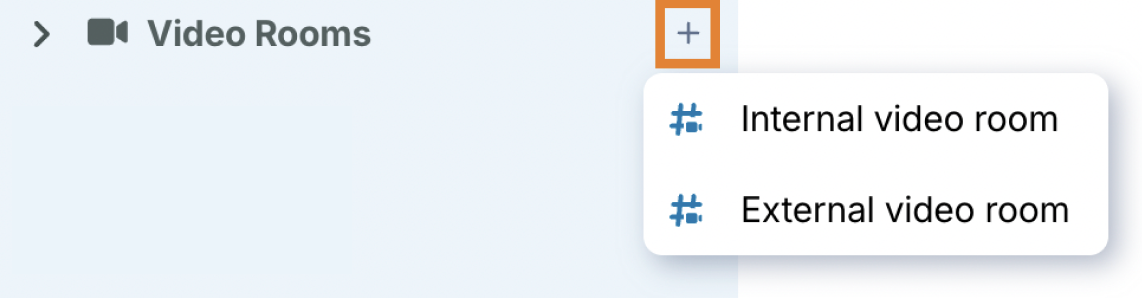
- Select the type of video room you want to create (see Video room types below).
- Select the visibility of the room (see Visibility options below).
Video room types
When creating a video room, you can choose between the following options:
-
Internal video room.
Only users from your home server can find and join the room. This option is suitable for internal meetings and team collaboration. Chat messages in internal video rooms are permanent. -
External video room.
External participants can join the meeting without creating an account on your homeserver. External users only need to enter their name to join the meeting, and no application installation is required, as they can join directly via their web browser.NOTE. Chat messages in external video rooms are not permanent and are cleared after the call ends.
The call does not start until a user from the internal homeserver joins and starts the meeting. External participants can only join after the call has been started by an internal user. This prevents external users from starting or hosting meetings on your server on their own.
If you create a video room but are not able to start the call, invite another internal user to act as host. To do this, click the three dots next to the video room name in the left-side panel and select Invite host.
Visibility options
When creating a video room, you can control who can find and join it by selecting one of the following visibility options:
-
Visible to space members.
All members of the selected space can find and join the video room. -
Private room (invite only).
Only users who are explicitly invited can find and join the video room. -
Public room.
Anyone can find and join the video room, depending on server configuration.
After the video room is created, you can start a meeting immediately and invite participants as needed.
Video call features
During a video call, a set of controls is available at the bottom of the screen to help you manage the meeting.
Available features include:
- Microphone controls.Mute or unmute your microphone. You can also select the microphone and speaker devices from the microphone options.
- Camera controls.Turn your camera on or off. You can also select the device from camera options. Video options also include Virtual backgrounds and Mirror my video.
- Screen sharing. Share your screen with other participants.
- Raise hand. Indicate that you would like to speak.
- Reactions. Send emoji reactions during the call.
- Tile view. Change the layout of participant videos.
- Invite participants. Invite additional users to join the meeting.
- Open in new window. Open the video call in a separate browser window.
- Full screen. Expand the video call to full screen.
- More actions. Access additional options such as security settings and call settings.
- Leave call. End or leave the meeting.
Security options
Video calls include built-in security features to help you control access to your meetings. Security options are available to room admins only. If you do not have the required permissions, these options are not visible.
To access security options, you must first join the video call.
Once you are in the call:
- Click More actions in the call controls.
- Select Security options.
The following security features are available:
-
Lobby mode.When enabled, participants must be approved by a moderator before they can join the meeting.
-
Meeting password.You can add a password to the meeting. Participants must enter the password before they are allowed to join.
EXTRA.Securely sharing external invitations
If you want to share an external meeting invitation securely using additional authentication methods such as SMS one-time passwords or strong authentication (for example, bank ID), you can use SalaX Secure Mail.
SalaX Secure Mail is a separate product in SalaX Secure Collaboration and provides encrypted email and secure message delivery.
For more information, see:
https://www.ssh.com/products/email-encryption-solution